Send Contact
Interactive in the conversation
Best when the recipient wants to act immediately. Tapping the card reveals the available call, email, copy, and Add to Contacts actions.
Search the contacts you have chosen to share, then send an interactive contact card or a visual QR name card—without leaving Messages.
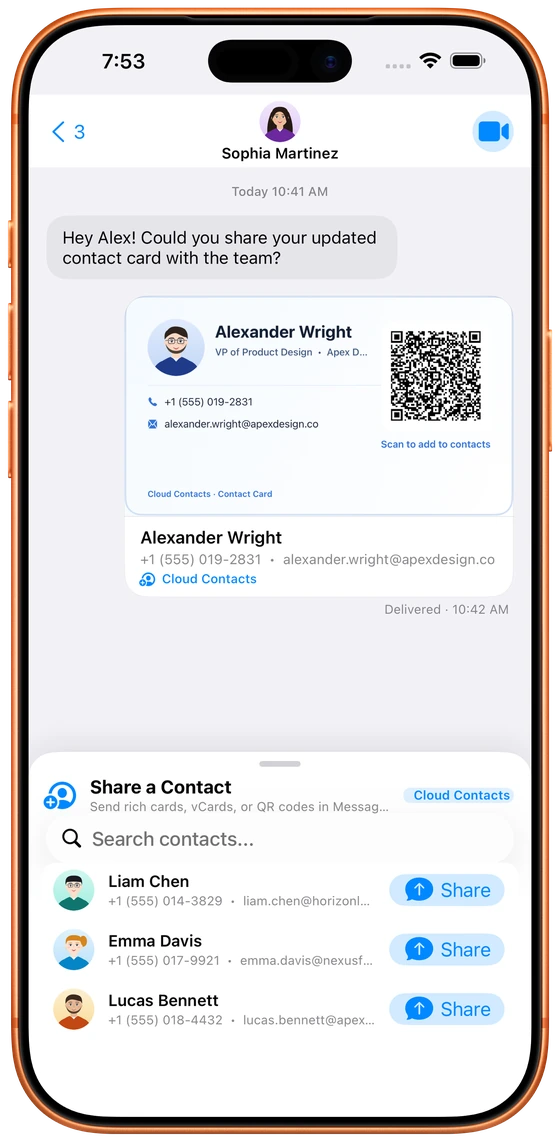 Inside Messages
 More formats in the app
Two formats
Interactive card or QR name card
No source edits
Sharing never changes the original
Useful on arrival
Call, email, copy, or add
Three deliberate steps
No copy-and-paste scavenger hunt. Choose a person and a format while the conversation stays in view.
Open a conversation, reveal the Messages app drawer, and choose Cloud Contacts.
Search by name, phone number, or email. The list uses the contacts you have made available for sharing.
Tap the person, then choose an interactive contact or a visual QR name card. Review the composer and send when ready.
Choose the outcome
Send Contact
Best when the recipient wants to act immediately. Tapping the card reveals the available call, email, copy, and Add to Contacts actions.
Send QR Name Card
Best for a recognizable name card that can also be scanned from another screen. The code carries the same compact shared details.
For the recipient
When Cloud Contacts is available on the recipient's device, the actions match the details you shared. Adding a person is always explicit, and the app checks accessible matching phone and email records before knowingly creating another copy.
Use the shared preferred phone number.
Start a message to the shared email address.
Save the person after granting Contacts permission.
Copy the shared name, phone, and email.
Cloud Contacts prepares the selected card on your device and hands it to Messages. It does not turn the contact into a public profile, grant access to the source account, or create an ongoing sync.
Share intentionally
Anyone in the conversation can read the details in the card, just as they can read the rest of the conversation.
Quick answers
No. Messages receives a copy of the selected name and preferred phone or email. The original provider record is not edited and no synchronization relationship is created.
The Messages card is deliberately compact: the contact name plus the preferred phone number and email address when available. Use the app's full contact export when the recipient needs every exportable field.
You can open the Cloud Contacts extension from Messages on iPhone and iPad. A recipient can see the card in the conversation; Cloud Contacts is required for its in-app actions, while the visual QR name card can be scanned separately.
Yes. Treat the card like any other message containing personal information. Share it only in a conversation where every participant should receive those details.
Open Cloud Contacts once to unlock the selected contact library, then choose the providers, groups, or people you want available to system integrations and sharing.

Need to choose individual fields, send a contact file, or use an expiring link? Explore the main app’s Share Contact workflow. The Messages extension keeps its own compact composer.
Download Cloud Contacts, choose which contacts are available for sharing, and open the extension from Messages.