How to Import Apple iCloud Contacts
Synchronize your Apple address book with Cloud Contacts using secure, Apple-approved CardDAV protocols. Keep your contacts updated in real-time.
Secure Apple Authentication Required
Because Apple restricts third-party sync services, you cannot use your normal Apple ID login password. Instead, Apple requires you to generate a secure, temporary App-Specific Password. This protects your main password and lets you revoke access at any time.
Step-by-Step Configuration
Access Your Apple Account
Go to account.apple.com on your computer or browser. Log in using your Apple ID and password, and complete the two-factor authentication (2FA) if prompted.
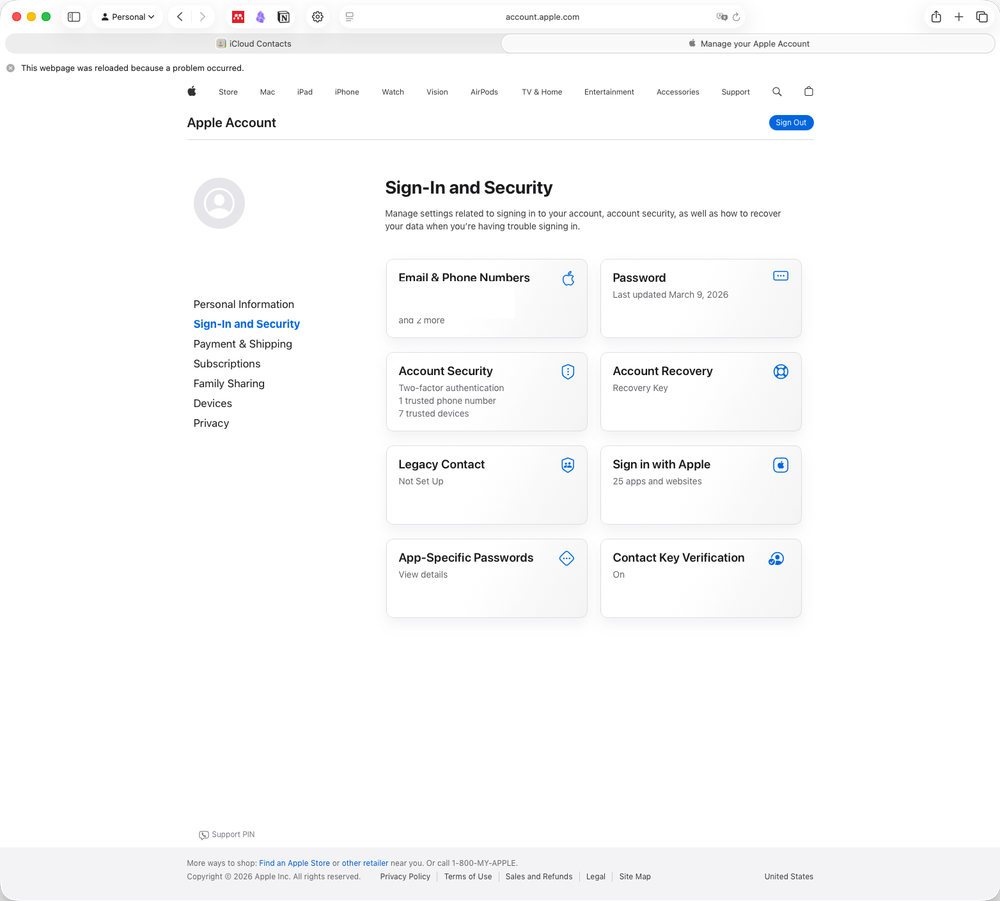
Navigate to App-Specific Passwords
In the dashboard, click on Sign-In and Security. Locate the App-Specific Passwords card (usually on the bottom left) and click on it to open the setup screen.
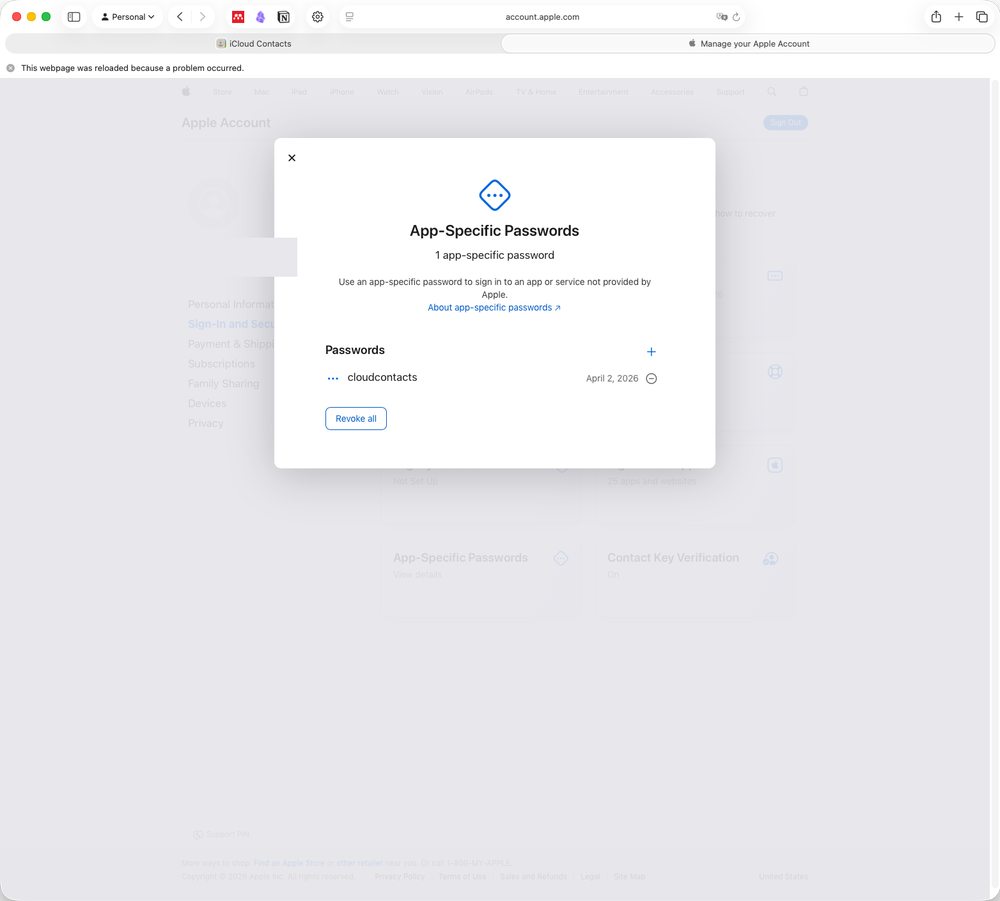
Generate New Password
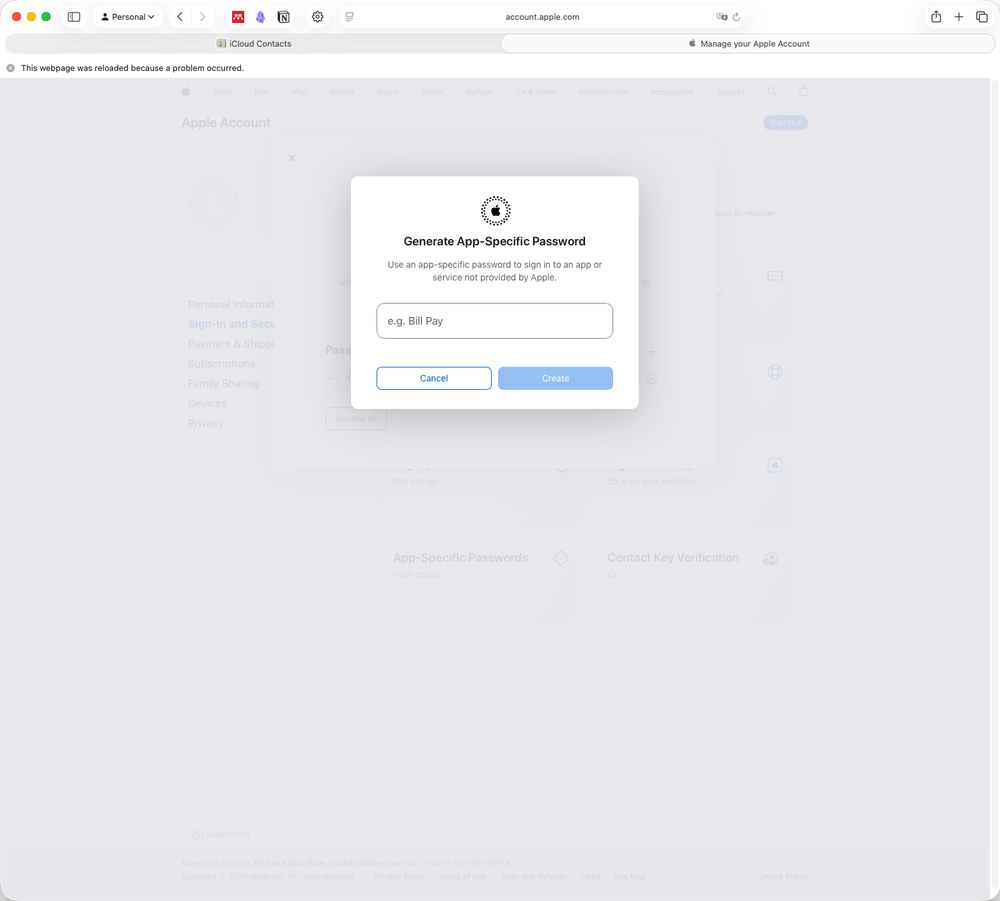
A modal will display. Click the + (Plus) button or "Generate an app-specific password". Enter a recognizable label, such as cloudcontacts, so you know this password belongs to this app, then click Create.
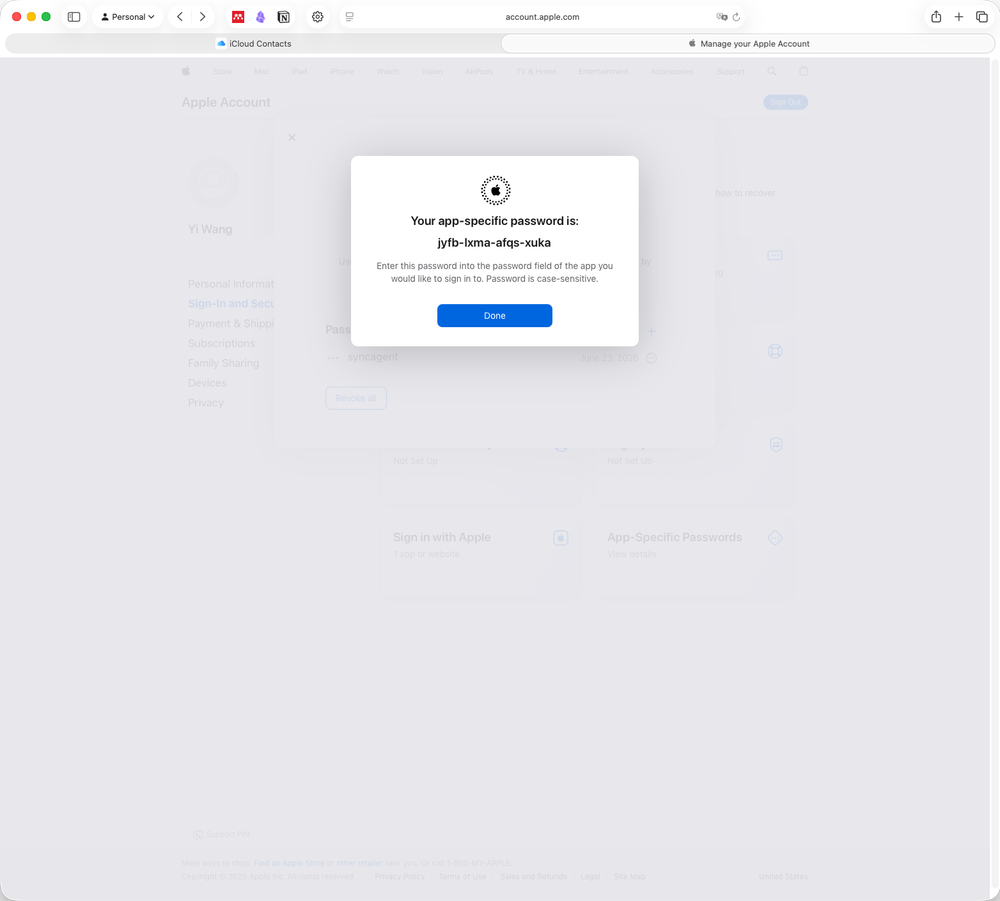
Copy Your Password
Apple will display your temporary 16-character password (e.g., abcd-efgh-ijkl-mnop). Copy it to your clipboard.
Important: Write down or copy the password immediately. Apple will not show this password to you again once you click Done.
Log In Within the App
Now open the Cloud Contacts app on your iPhone:
- Go to the Accounts tab and tap Add Account.
- Choose iCloud from the providers list.
- In the login screen, enter your Apple ID Email as the username.
- Paste the App-Specific Password you copied in Step 4.
- Tap Sign In.
How to Verify Your Contacts are in iCloud
If your contacts do not appear in the app after syncing, verify they are hosted on iCloud's web servers.
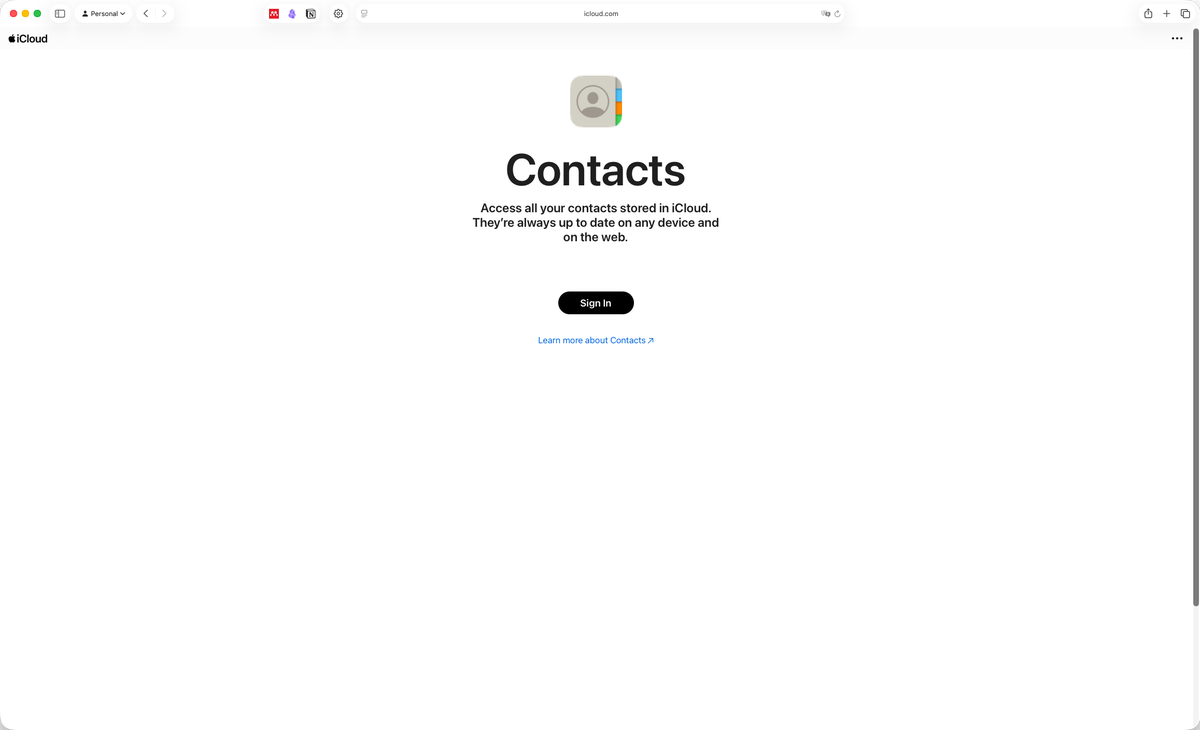
Confirm Address Book
Browse through your contacts list to ensure they exist on the cloud, not just on your phone's local memory.
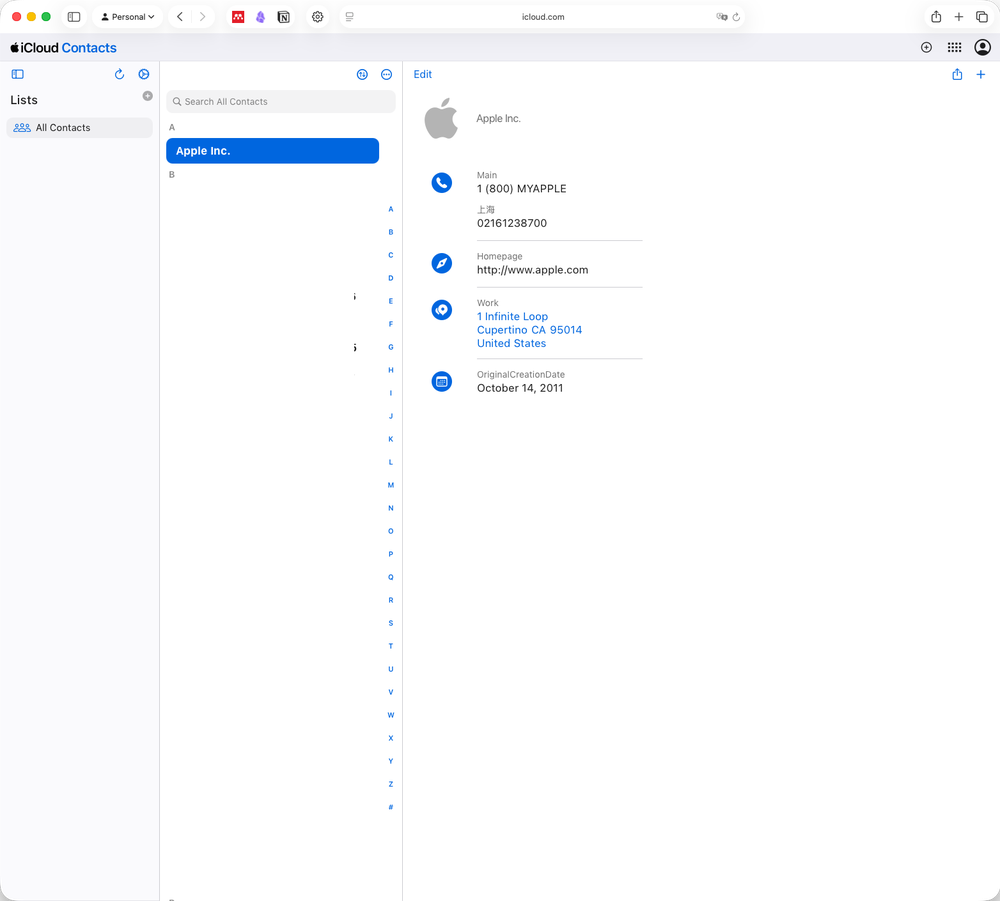
Check Sync Status
The URL should display icloud.com/contacts/. Any changes made here are instantly synced to Cloud Contacts.
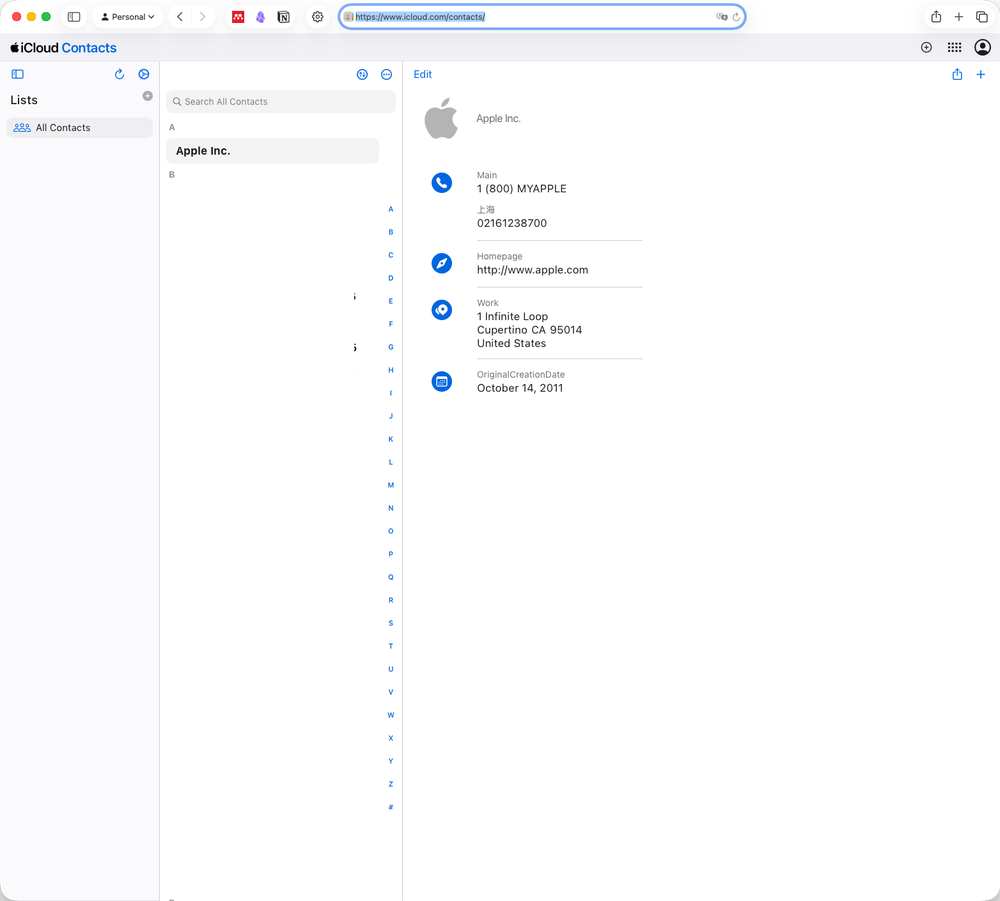
Troubleshooting Connection Errors
Having trouble connecting your iCloud CardDAV account? Here is how to diagnose and resolve the most common connection issues.
Authentication Failed / User Cancelled Authentication
• English: “The operation couldn’t be completed. (NSURLErrorDomain error -1012.)”
• Français: “L’opération n’a pas pu s’achever. (NSURLErrorDomain erreur -1012.)”
This error means Apple’s CardDAV server rejected your login credentials. It occurs almost exclusively for one of four reasons:
Apple blocks standard Apple ID passwords and 2FA codes for CardDAV. You must create an App-Specific Password at account.apple.com.
Copying the password from Apple’s web page often grabs a trailing or leading whitespace. Delete any spaces at the beginning or end of your password and email.
Make sure the username is your full email address (e.g., [email protected] or [email protected]), not just the alias or name prefix.
If you changed your Apple ID password or revoked tokens, previous app passwords expire. Simply generate a fresh 16-character password and sign in again.
CloudContacts, copy the 16 characters (e.g. abcd-efgh-ijkl-mnop), and paste it directly into the Cloud Contacts password field.Internet Connection Offline
NSURLErrorNotConnectedToInternet. Your device has lost cellular or Wi-Fi connectivity. Verify Airplane Mode is off and you can browse web pages in Safari before retrying.
Connection Timed Out
NSURLErrorTimedOut. Apple’s servers or your local network did not respond within the timeout window. Check Apple’s System Status page or try again on a stable Wi-Fi network.
SSL / TLS Security Error
NSURLErrorSecureConnectionFailed. Usually caused by an incorrect device clock (check Settings → General → Date & Time → Set Automatically) or a corporate VPN/proxy intercepting TLS traffic.
Frequently Asked Questions
Why does the app say "NSURLErrorDomain error -1012" or "Login failed"?
Error -1012 (NSURLErrorUserCancelledAuthentication) indicates that Apple's CardDAV server rejected the username or password. This typically happens if you entered your primary Apple ID account password instead of an App-Specific Password, or if trailing spaces were accidentally pasted. Go to account.apple.com, generate a new App-Specific Password, and paste it carefully without extra spaces.
Do I need to include the hyphens in the 16-character password?
Both work. You can paste the password with hyphens (e.g., abcd-efgh-ijkl-mnop) or without hyphens (abcdefghijklmnop). What matters is that all 16 characters are correct and there are no spaces before, between, or after.
Can I use my regular Apple Account password?
No. Apple strictly enforces Two-Factor Authentication (2FA) and does not permit third-party CardDAV or CalDAV connections using master Apple Account passwords. Generating an App-Specific Password protects your Apple Account security while allowing secure direct synchronization.
Does Cloud Contacts store my iCloud password?
No. The App-Specific Password is saved strictly on your local device keychain and transmitted directly to Apple's CardDAV endpoint via TLS. Neither Cloud Contacts nor any third-party server ever has access to your credentials.
How do I revoke access?
You can revoke the App-Specific Password at any time. Go to account.apple.com, open the App-Specific Passwords popup, and click the - (Minus) icon or click Revoke all. Once revoked, the app will no longer be able to sync.
Need more assistance?
If you encounter problems during the CardDAV login process, feel free to contact our support team.