


Cloud Contacts
Provider-to-provider contact sync

Put the right contacts in the right address book.

Move the contact cards you choose from connected providers to one destination—with a clear review of additions and updates before anything is written.

One way per runOne destinationReview before writingSource stays in place
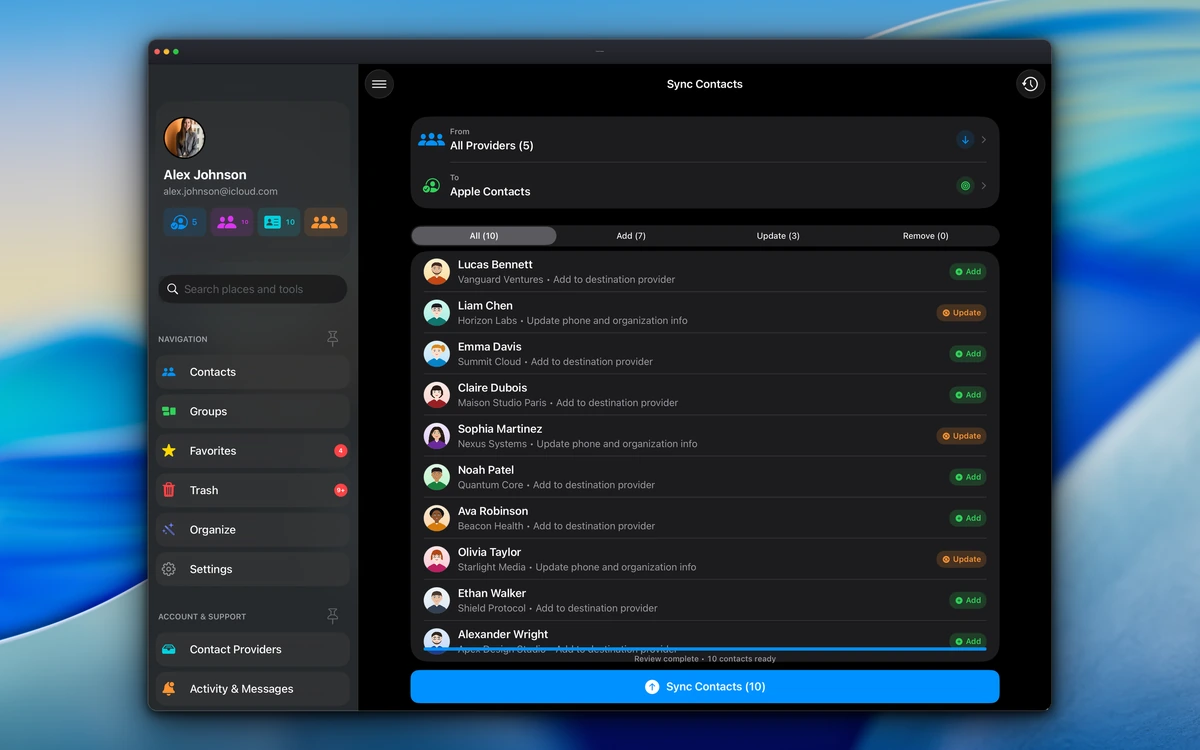
Sync Contacts on Mac showing selected providers, Apple Contacts as the destination, and Add and Update review results
Contact Providers on iPhone showing Google Contacts, Microsoft Outlook, iCloud, and CardDAV accounts
Review additions and updates
Real app screens. Your source stays in place until you choose otherwise.
Authentic current app screens: connect contact providers, choose one destination, and review every proposed addition or update before syncing.
Connect and choose
Google Contacts icon
Google Contacts
Microsoft Outlook icon
Microsoft Outlook
iCloud icon
iCloud
CardDAV
JMAP Contacts
Apple Contacts icon
Apple Contacts

Start with the result

Which outcome do you actually want?

The safest workflow depends on whether you want visibility, a separate copy, a provider change, or continuous mirroring.

I only want contacts to appear in the Contacts app

You may not need to copy them. Enabling Google, Microsoft, or another contact account in device settings can keep that provider as the owner. Use Cloud Contacts when you want to inspect, clean, or deliberately create a copy elsewhere.

I want selected contacts in Apple Contacts

Choose the existing provider under From and Apple Contacts under To. Cloud Contacts shows the resolved destination account and prepares additions and updates for review.

I am changing contact providers

Connect the old and new accounts, select one writable destination, and approve the proposed copy. Your source records stay where they are until you remove them separately.

I want two accounts continuously mirrored

Sync Contacts is not an always-on two-way mirror. It is a manual, one-way workflow. Choose a source of truth and repeat a reviewed plan when you want to refresh its destination copy.

Apple Contacts icon

Apple Contacts

The address book used by Apple apps

iCloud icon

iCloud

One provider that can store and carry those cards

iPhoneiPadMac

An important distinction

Apple Contacts is not the same thing as iCloud.

Apple Contacts is the address book available to the Contacts, Phone, Messages, Mail, Siri, and related apps. iCloud is one provider that can store and synchronize those contact cards. Google, Microsoft, and other accounts can also appear in Apple Contacts when enabled on the device.

Want the result on iPhone, iPad, and Mac?

Select Apple Contacts as the destination, confirm that the displayed default account is iCloud, and enable iCloud Contacts on every device signed in to the same Apple Account. Cloud Contacts writes once; iCloud handles propagation.

The complete workflow

How to sync contacts without guessing

Six explicit decisions take you from connected source to verified destination.

  1. 1

    Connect the source

    Open Contact Providers and add Google Contacts, Microsoft Outlook, iCloud/CardDAV, a compatible JMAP Contacts server, or another supported source. You can also import from Apple Contacts after granting permission.

  2. 2

    Open Sync Contacts

    In Cloud Contacts, open Organize, then choose Sync Contacts. Merely opening the workflow does not change any contact.

  3. 3

    Choose From

    Start with one or more eligible providers. Optionally narrow the plan by groups and then by individual contacts. No group selection means all eligible contacts in the selected providers remain available.

  4. 4

    Choose one To destination

    Select Apple Contacts or exactly one connected, active provider that supports writing. The destination is excluded from the source so a plan cannot copy back into itself.

  5. 5

    Review additions and updates

    Cloud Contacts compares the selected cards with the destination and separates proposed additions from proposed updates. Matching rules differ by destination, so review every proposed update before approving it.

  6. 6

    Confirm, then verify

    Approve the displayed direction and counts, then check the completion result for successes or failures. Apple Contacts transfers also appear in Sync History; remote-provider transfers do not currently use that history.

Groups select contacts; they are not transferred.

A group can narrow the From list when usable membership data exists. The plan does not recreate group names, folders, distribution lists, labels, or memberships at the destination. CardDAV group synchronization is not supported in the current release.

Common destinations

Choose a route that matches your goal

Every run has an explicit From, one To, and an expected result.

Copy Google Contacts into iCloud

From
Google Contacts
To
Apple Contacts (default: iCloud)

Approved cards are written to the iCloud-backed Contacts account; Google stays unchanged.

Move from Android to iPhone

From
Google Contacts
To
Apple Contacts

Approved contact cards become available to Apple apps; Google stays unchanged.

Use approved work contacts on an Apple device

From
Microsoft Outlook
To
Apple Contacts

Selected supported fields are copied after review, subject to your organization’s policy.

Change cloud providers

From
One connected provider
To
One writable provider

Destination-owned cards are created or updated; the source remains intact.

Use a private contact server with Apple apps

From
CardDAV or JMAP Contacts
To
Apple Contacts

Supported contact-card fields are copied; group structures are not transferred.

Store Apple Contacts in another account

From
Apple Contacts
To
Google, Microsoft, CardDAV, or JMAP

Approved cards are created or updated when the connected destination supports writing.

Consolidate selected records

From
Several eligible sources
To
One destination

Only the chosen destination receives the reviewed cards; nothing is broadcast everywhere.

Contact-card fields

Apple Contacts currently receives name components, one organization and title, phone numbers, email addresses, postal addresses, and a photo. Remote-provider adapters may support additional fields—including notes, dates, websites, and social details—when the destination accepts them.

Destination availability

Sources, destinations, writable fields, and account limits depend on the app edition, subscription, provider adapter, permissions, and server implementation. Remote provider destinations require Cloud Sync; Apple Contacts availability follows the current app edition.

Cloud Contacts reviewing contact cards before adding them to Apple Contacts

On iPhone, iPad, and Mac

Make approved contacts available where you use them.

iPhone

Allow Contacts permission, choose Apple Contacts under To, and confirm the default destination account shown during review.

iPad

Run the same reviewed workflow. To see the result on both iPhone and iPad, enable the destination provider’s Contacts account on both devices.

Mac

Cloud Contacts can run the review on Mac too. Enable the same destination account in Contacts settings so its cards appear in the Contacts app.

The destination provider—not the screen you used—determines where the records live. Use the same provider account on every device when you want provider-backed contacts to follow you.

Safety by design

Review first. Write only to the account you chose.

One destination at a time

An all-provider source never means sending every contact to every account.

Matching depends on the destination

Apple Contacts uses the system’s smart matching. Remote providers prefer established links and unique identity signals. Always review proposed updates.

The source stays in place

Provider-to-provider sync creates or updates destination cards. It does not turn a copy into an unexplained move.

Review a fresh plan

The app rechecks destination eligibility and matching before writing. If contact details changed after review, return and prepare the plan again.

Partial means partial

Network, permission, subscription, server, and record failures are reported instead of being labeled a successful sync.

Built for large libraries

Review and writing use bounded batches rather than trying to keep an entire contact graph in memory.

Normal contact synchronization communicates directly from the app to the provider accounts you connect. Optional Cloud Backup is a separate, consent-based feature and is not required for provider-to-provider sync.

Questions, answered

Before you sync

Does Cloud Contacts continuously synchronize two providers?

No. Sync Contacts is a manual, reviewed, one-way copy to one destination. Connected-provider background refresh is a separate feature and does not automatically rerun a cross-provider plan.

Will it delete contacts from the source provider?

No. A provider-to-provider run creates or updates cards in the destination. Source contacts stay in place unless you remove them separately.

Will Google or Outlook contacts appear on my iPhone, iPad, and Mac?

Choose Apple Contacts as the destination. If you want iCloud to carry the result across devices, make iCloud the default Contacts account and enable iCloud Contacts on every device signed in to the same Apple Account.

Does Apple Contacts always mean iCloud?

No. Apple Contacts is the address book used by Apple’s Contacts, Phone, Messages, Mail, and related apps. iCloud is one provider that can store those cards. Cloud Contacts displays the resolved default Contacts account before writing.

How do I sync Google Contacts to iCloud?

Choose Google Contacts under From and Apple Contacts under To, then confirm that the displayed default Contacts account is iCloud. Review the Add and Update candidates and approve the copy. This does not create a continuous two-way bridge between Google and iCloud.

Can Cloud Contacts guarantee that no duplicate will ever be created?

No contact tool should make that promise. Cloud Contacts uses established destination links and unique matching signals, then separates Add and Update candidates so you can review the plan before writing.

Will groups, folders, and labels be copied?

No. Groups can narrow the source selection, but provider group models are different and the cross-provider workflow copies contact cards, not group structures. CardDAV group synchronization is not supported in the current release.

Why is a provider unavailable under To?

The account may be read-only, disconnected, unsupported for writing, restricted by the app edition or subscription, or missing permission. Compatible JMAP Contacts support is required; JMAP mail support alone is not enough.

Why is a field missing after transfer?

Contact providers do not expose identical data models. For Apple Contacts, the current transfer covers name components, one organization and title, phone numbers, email addresses, postal addresses, and a photo. Remote destinations may support additional fields such as notes, dates, websites, and social details through their adapters.

Do I need Cloud Contacts on every device?

Usually not. Run the transfer on one supported device, then enable the destination provider’s Contacts account on the other devices. A contact stored only on one device will not synchronize itself elsewhere.

Is contact synchronization the same as a backup?

No. A mistaken edit can synchronize too. Before a large migration, create a separate recovery snapshot if you need a rollback point.

Ready when you are

Know where every contact will go before you sync.

Connect your providers, choose one destination, review the proposed additions and updates, and approve only the transfer you intend.

iPhone & iPadDownload on the App Store
MacDownload on the App Store